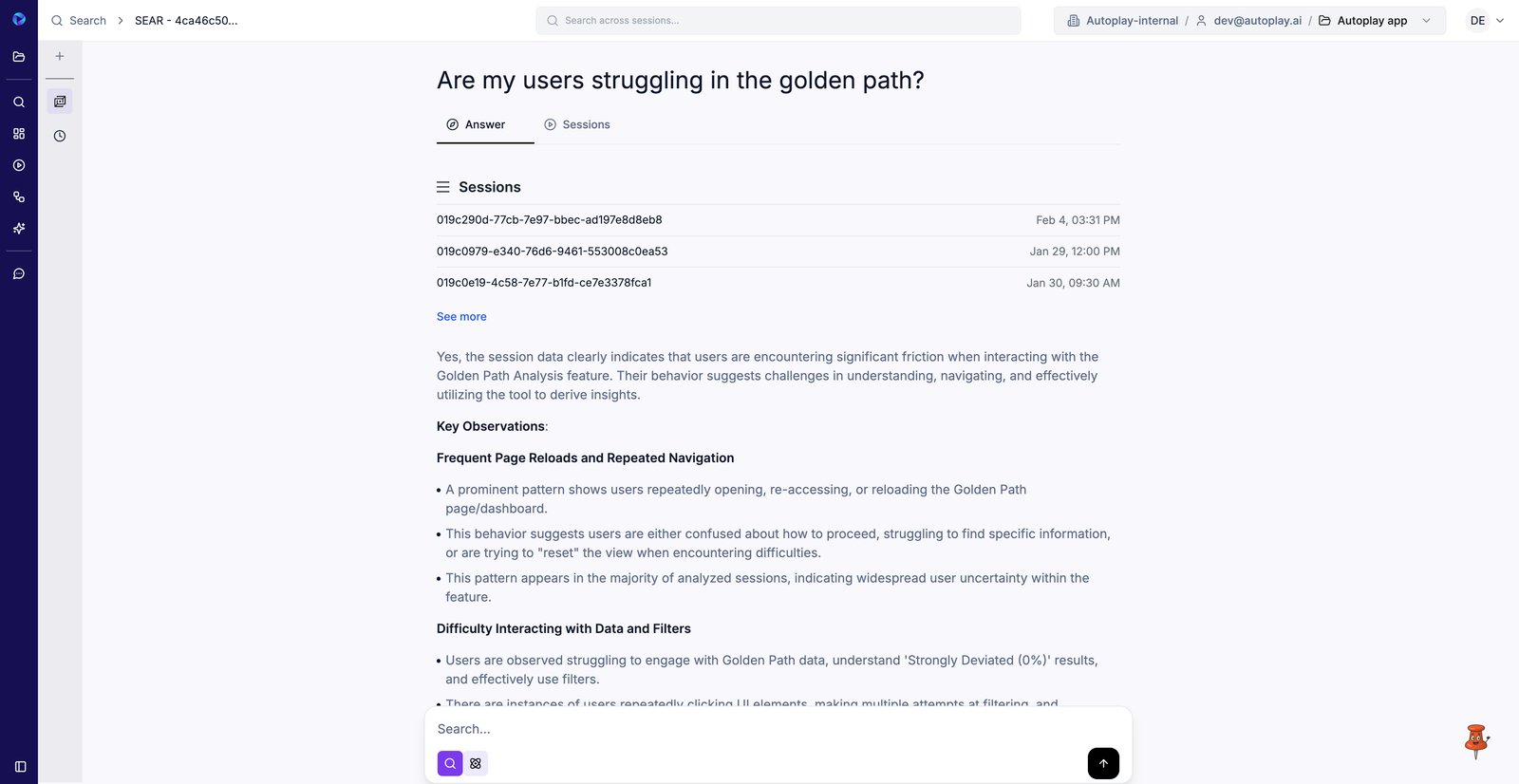
How to Hypothesis Test Using Search
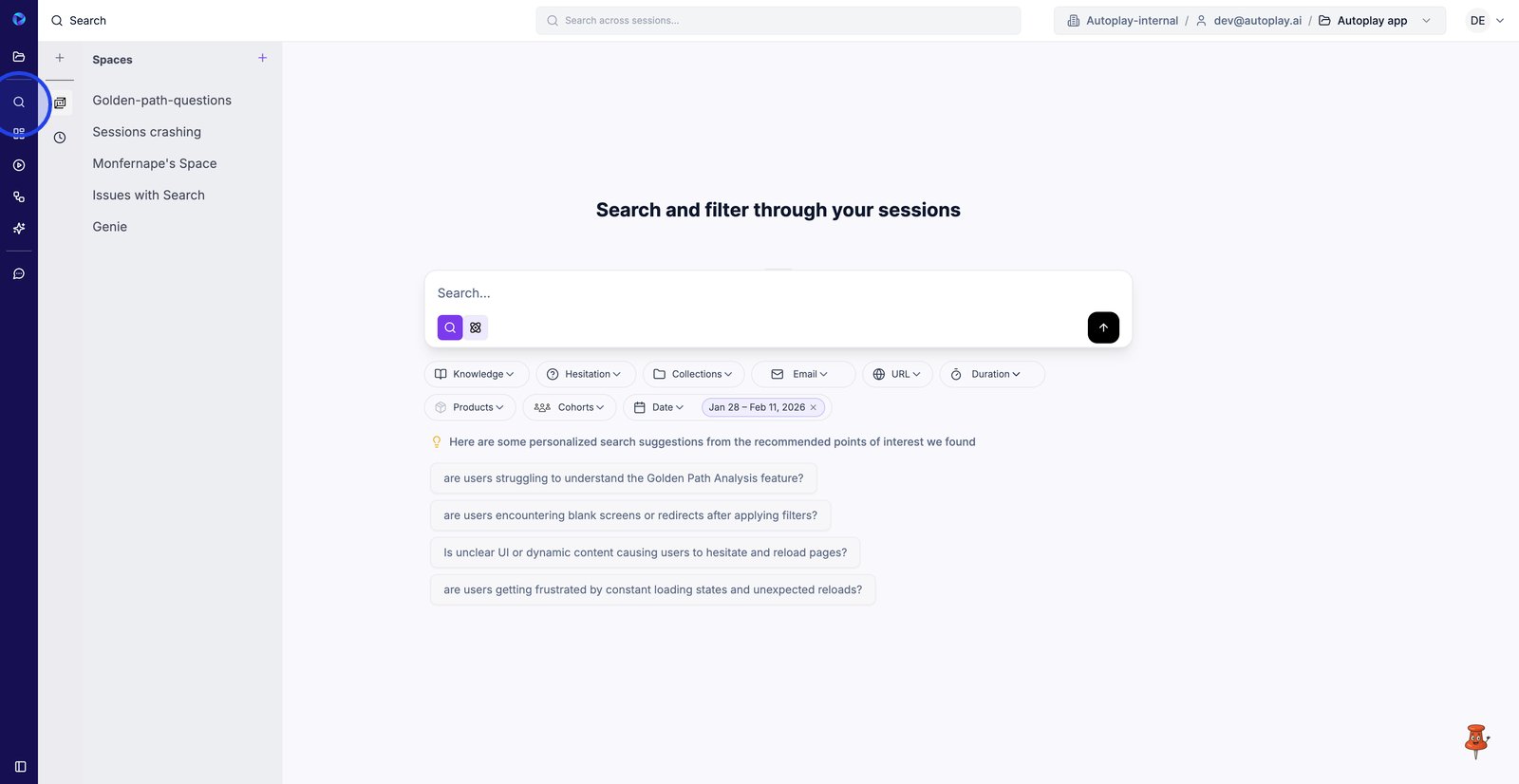
1. Click Search in the left sidebar to start finding sessions to analyze.
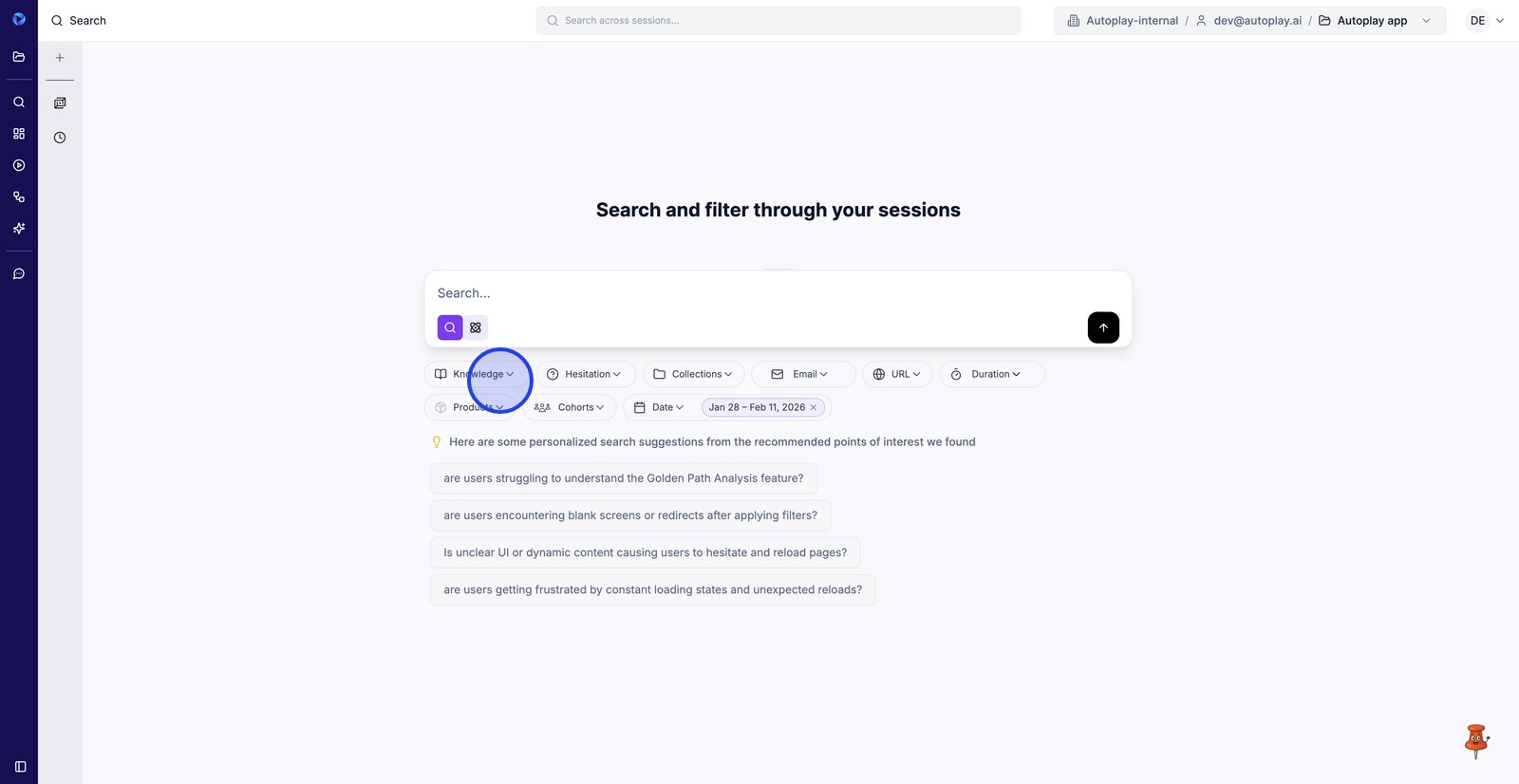
2. Open the Knowledge filter to narrow results by how informed or guided users were during the session.
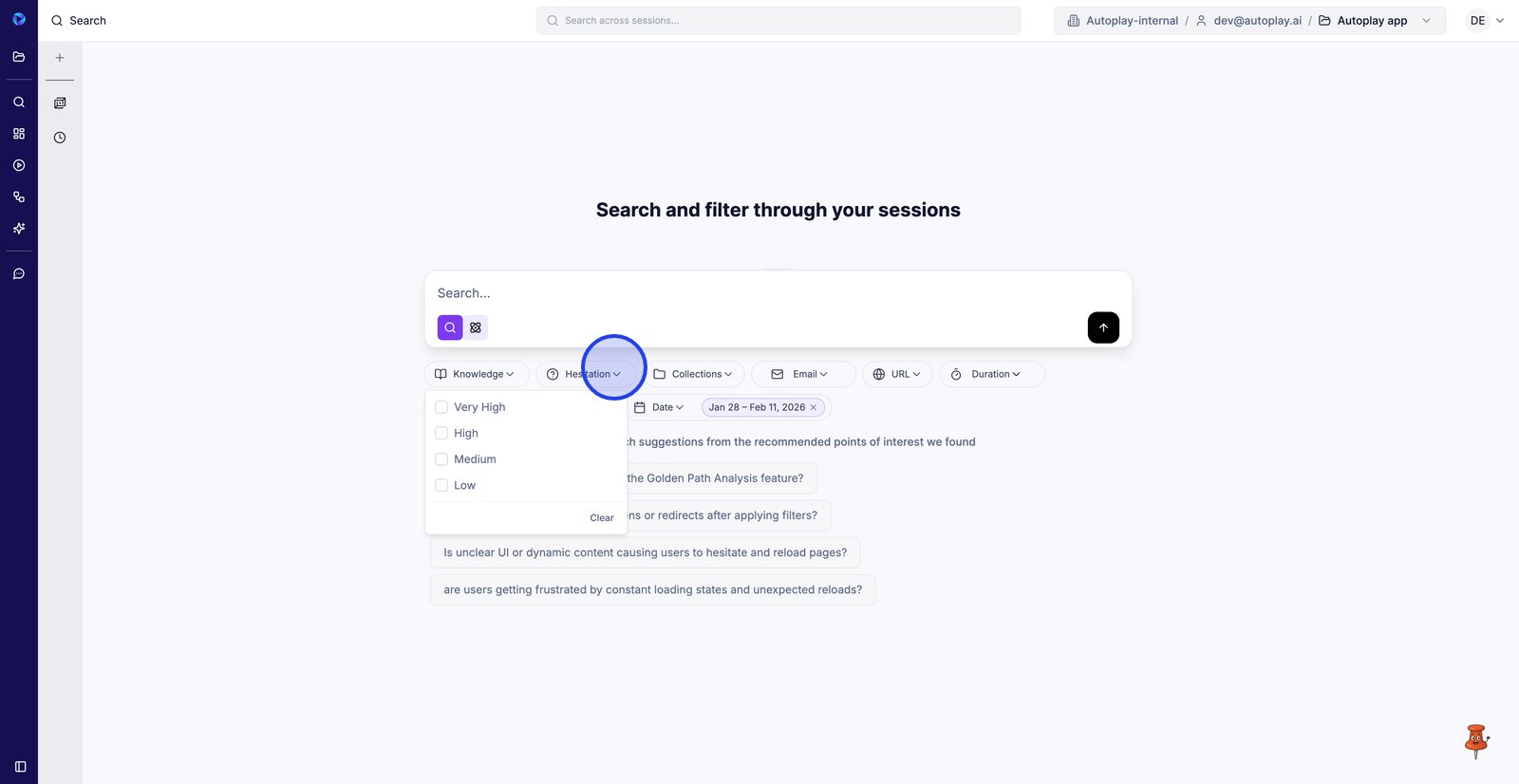
3. Use Hesitation levels to focus on sessions where users seemed stuck or uncertain.
4. Open Collections to limit your search to sessions grouped into specific collections.
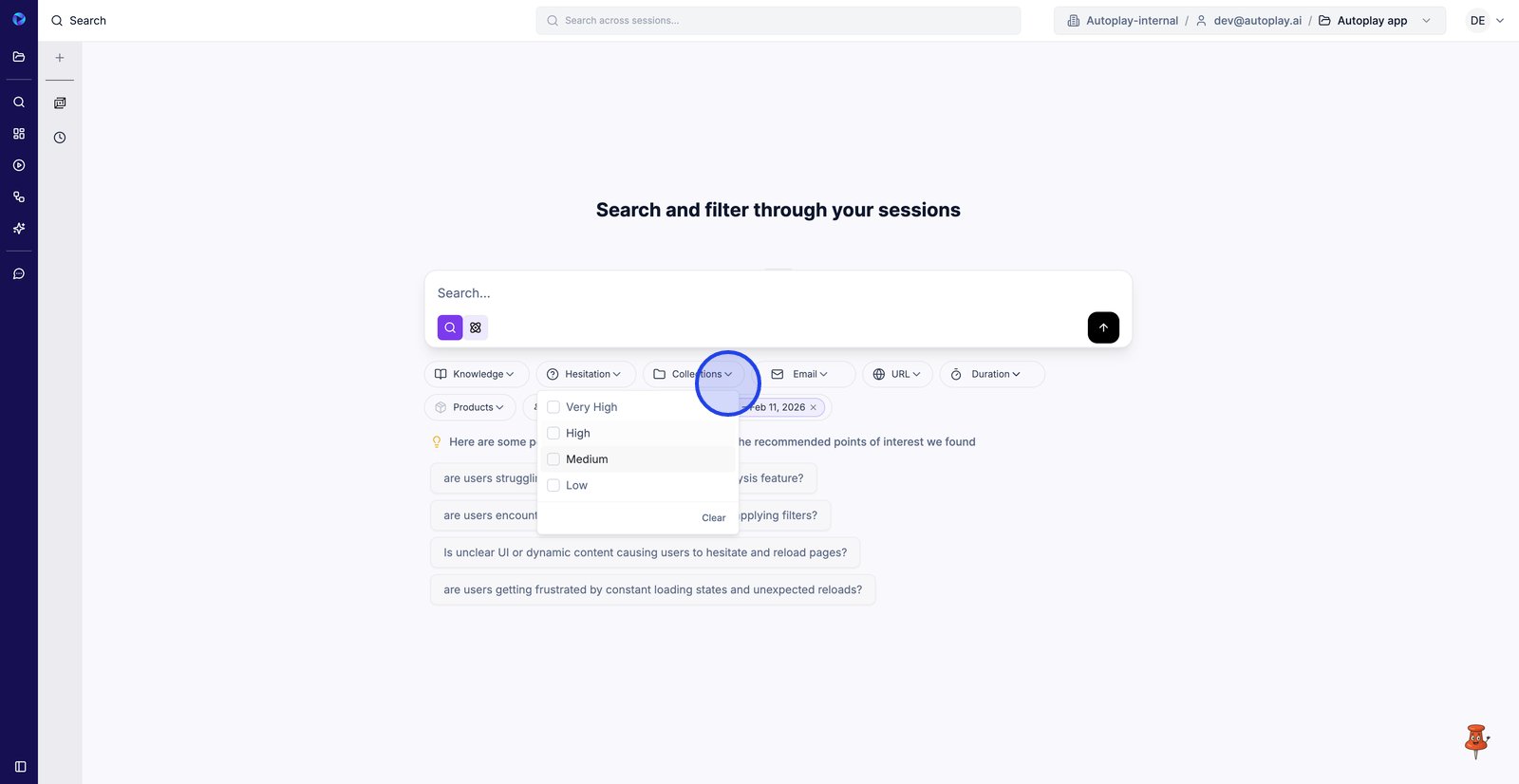
5. Choose one or more collections here to keep the session list focused on a single theme.
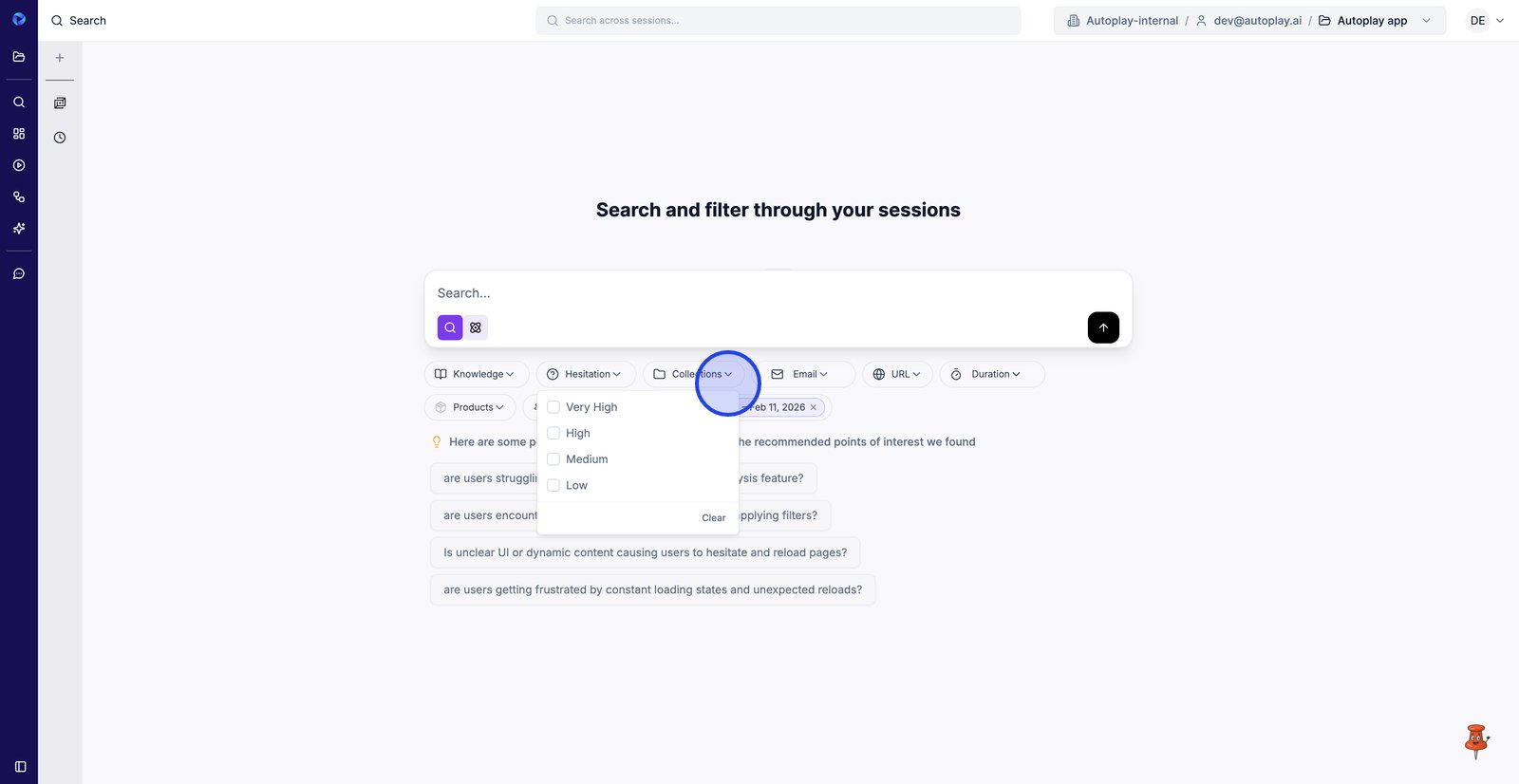
6. Filter by Email to pull up sessions from a specific user you want to investigate.
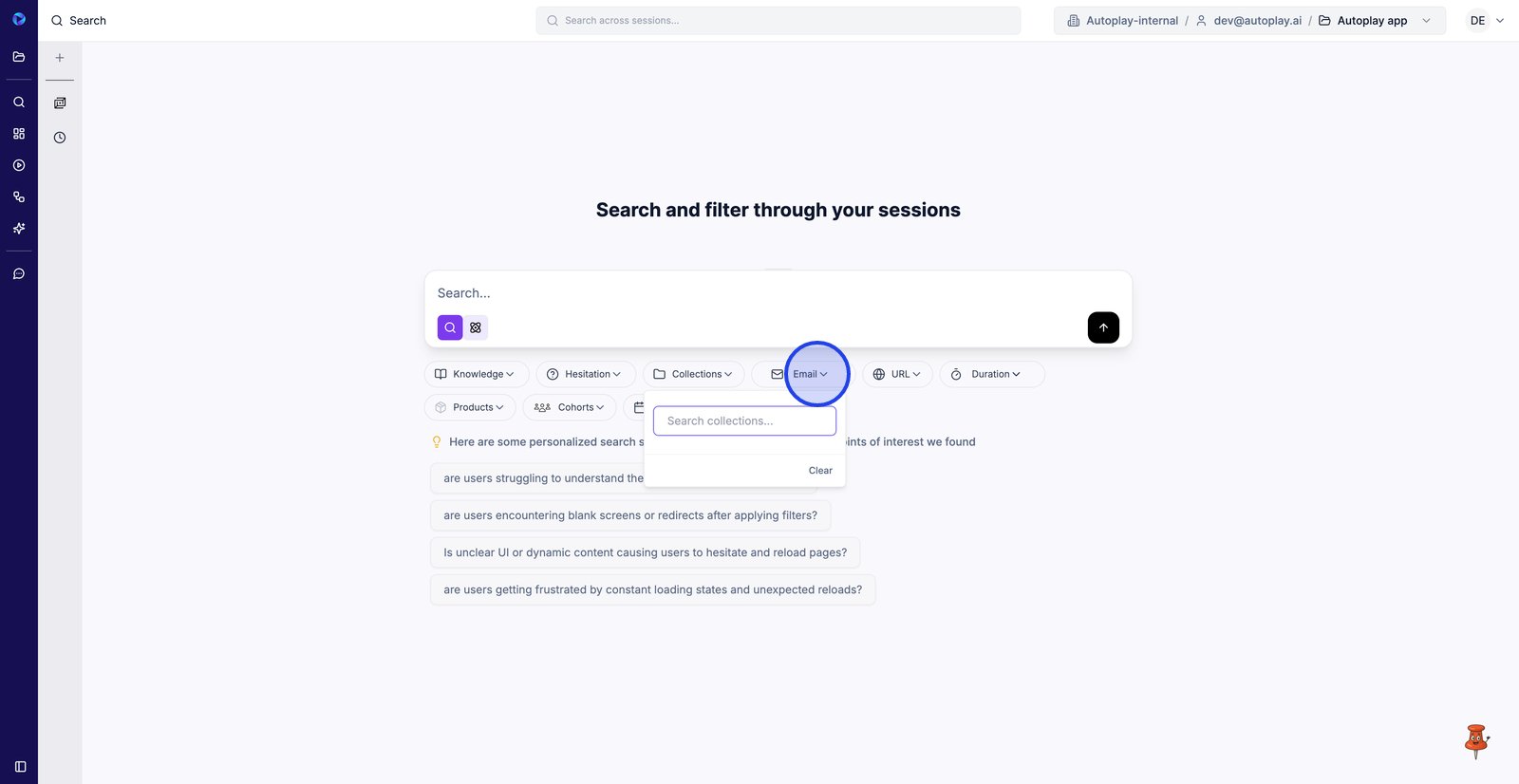
7. Use the URL filter to find sessions that include a particular page or route.
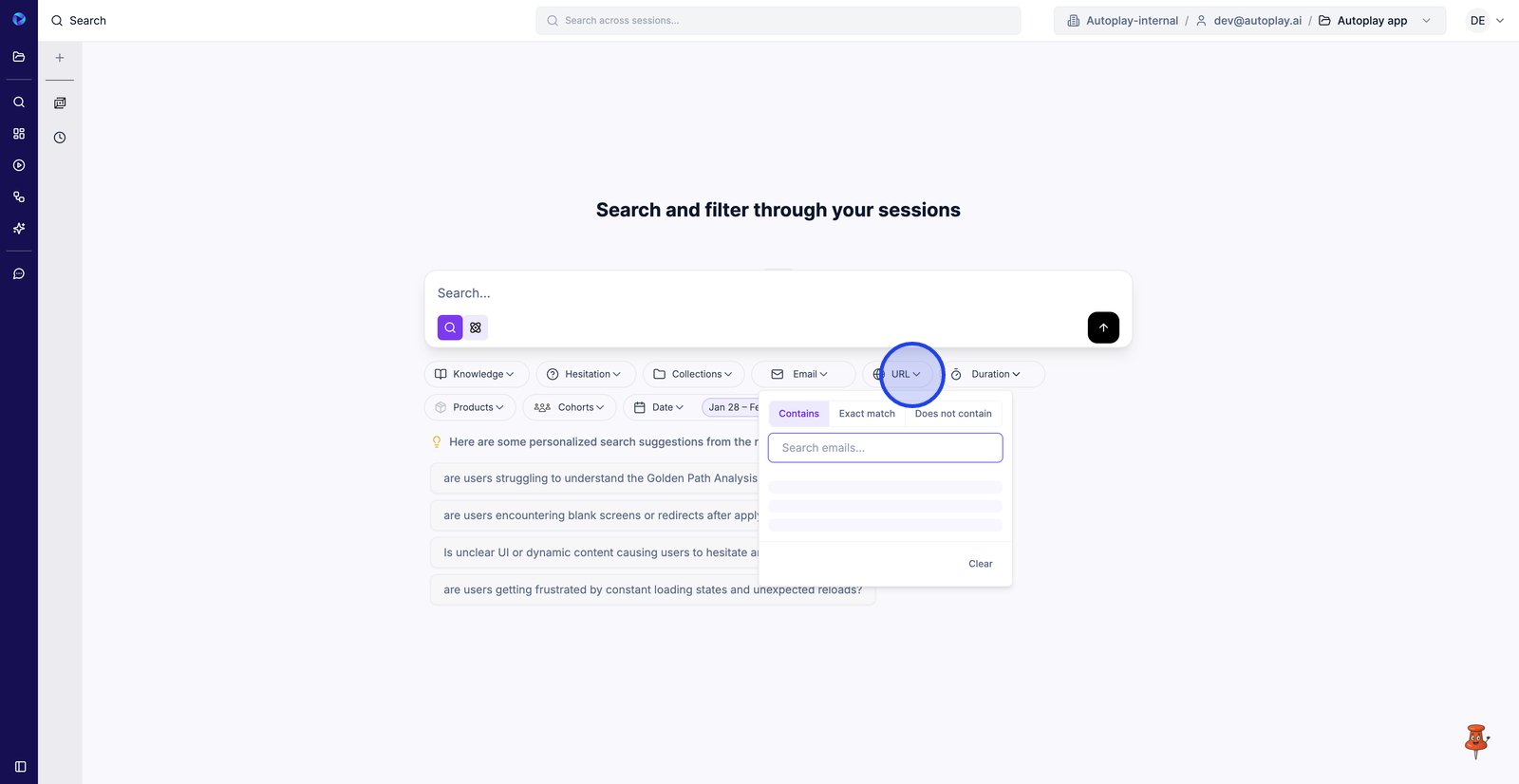
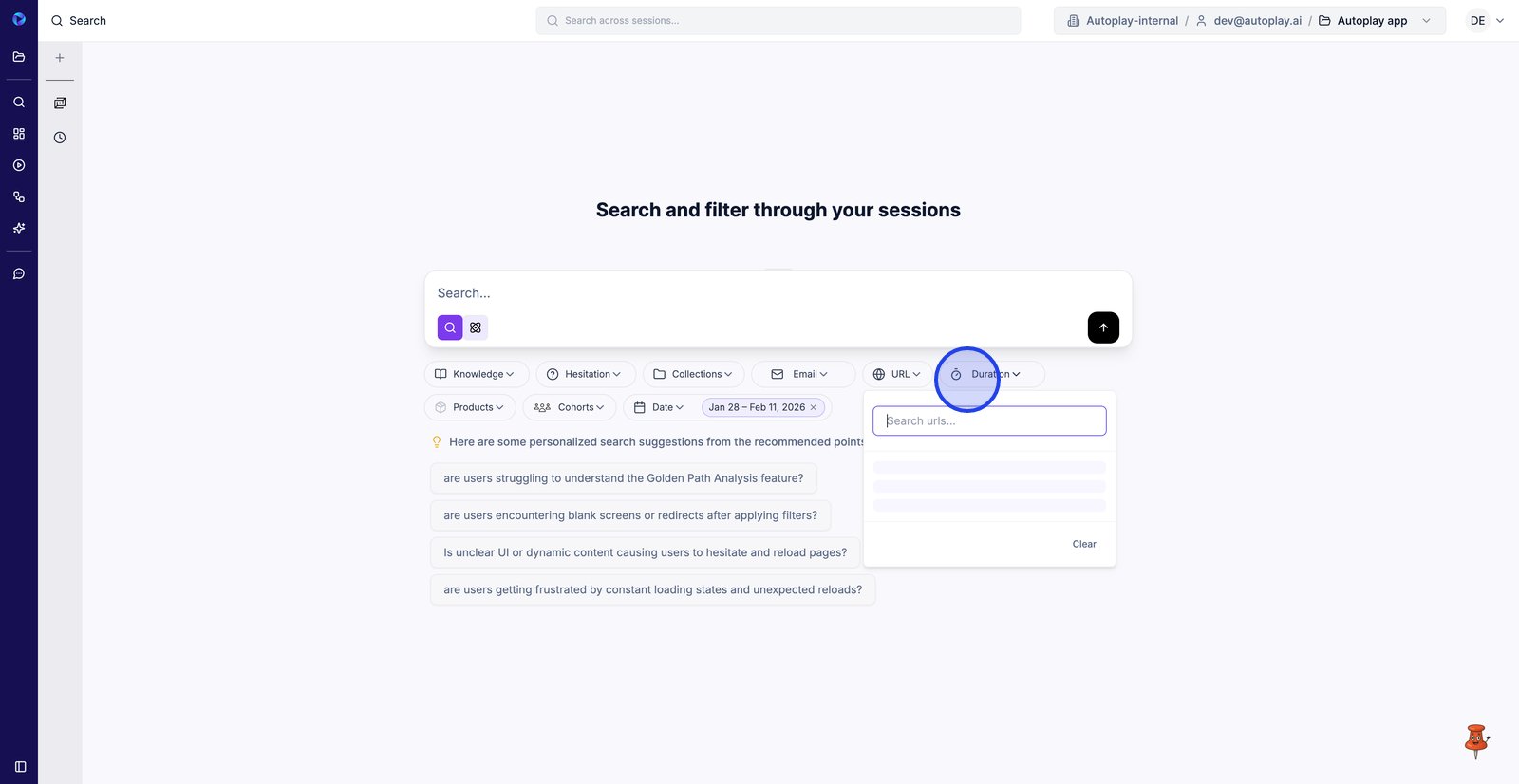
8. Filter by Duration to isolate very short sessions (bounces) or long sessions (struggles).
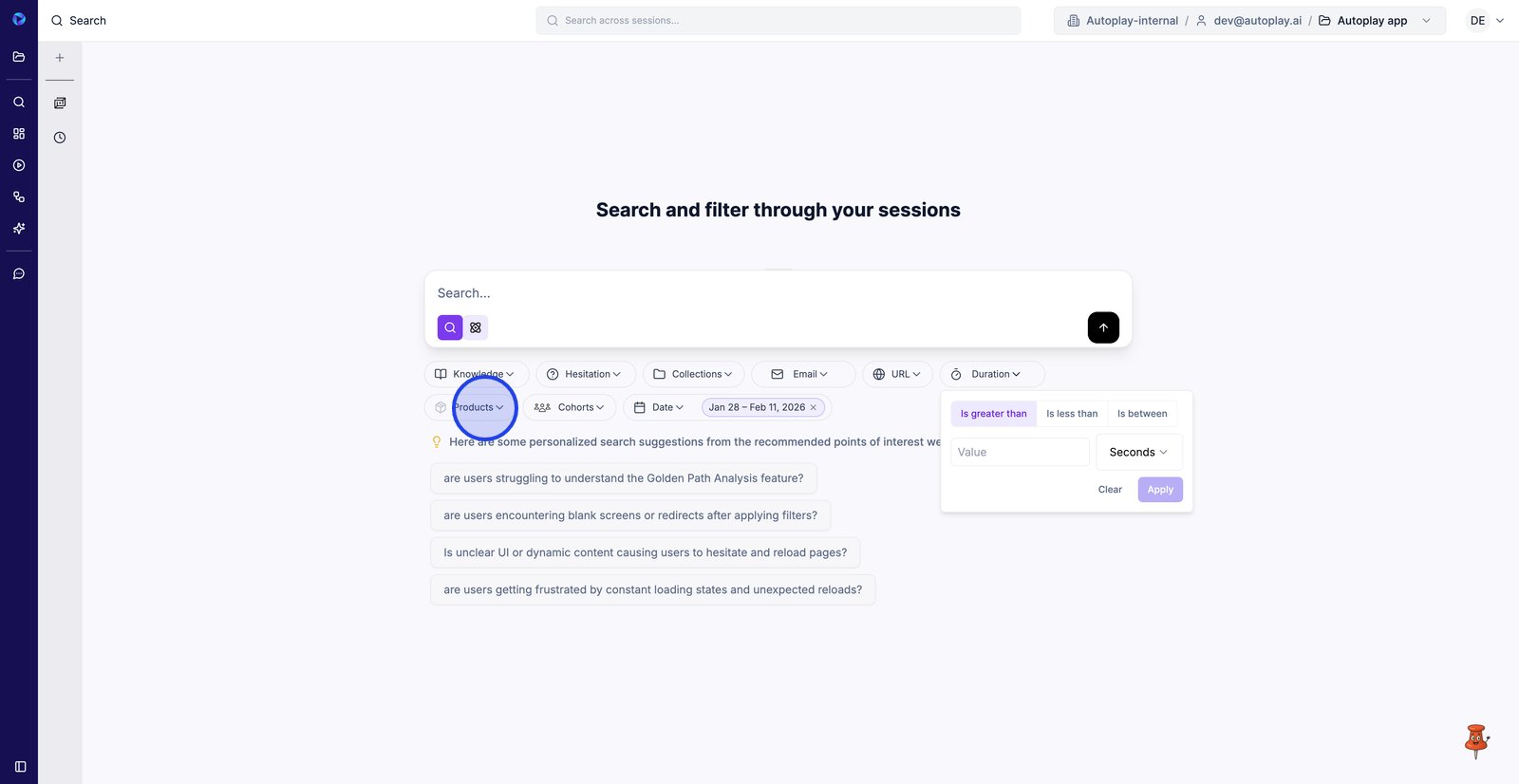
9. Select Products to restrict results to the product area related to your Golden Path flow.
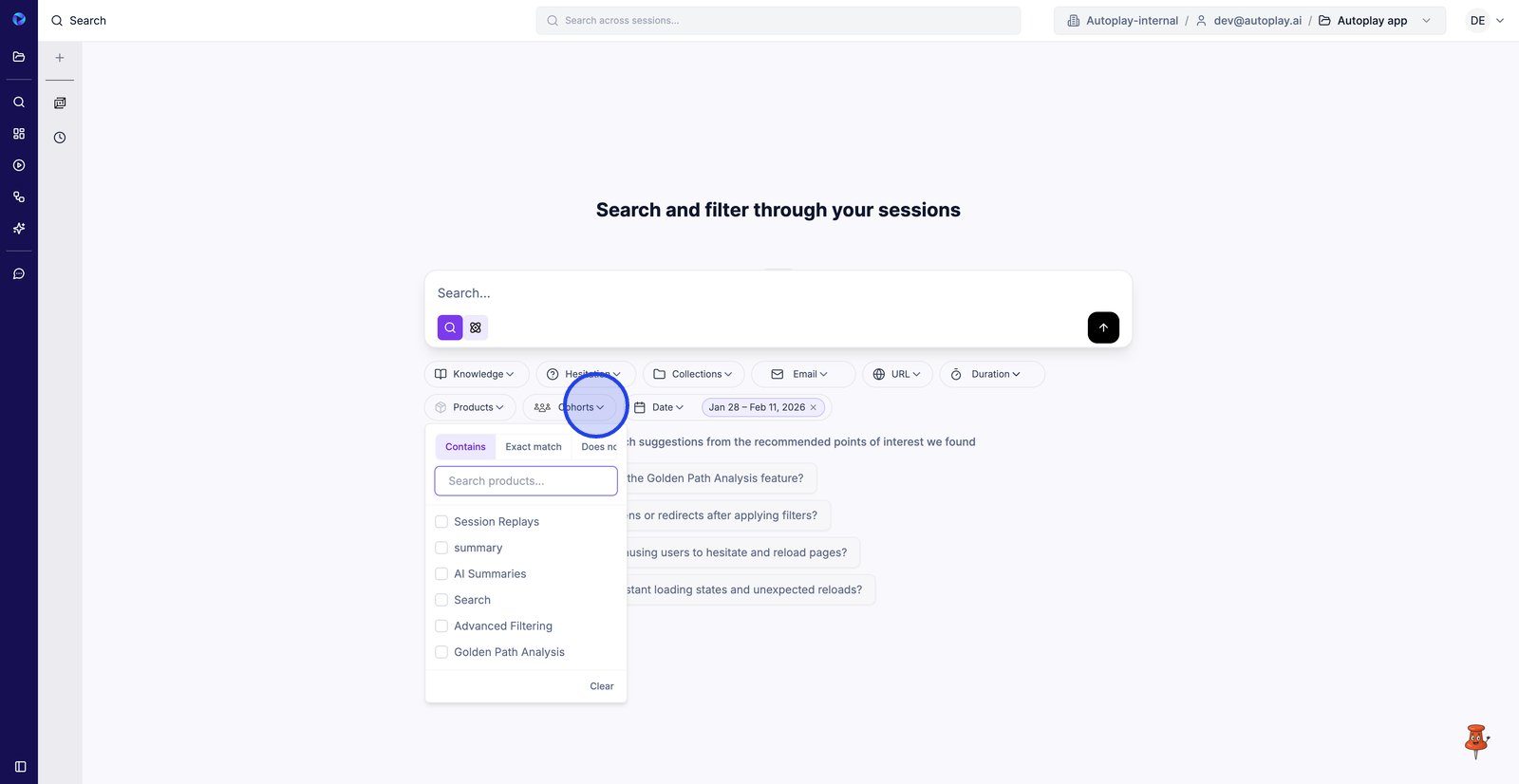
10. Use Contents to target sessions that mention or contain events from Golden Path Analysis and related features.
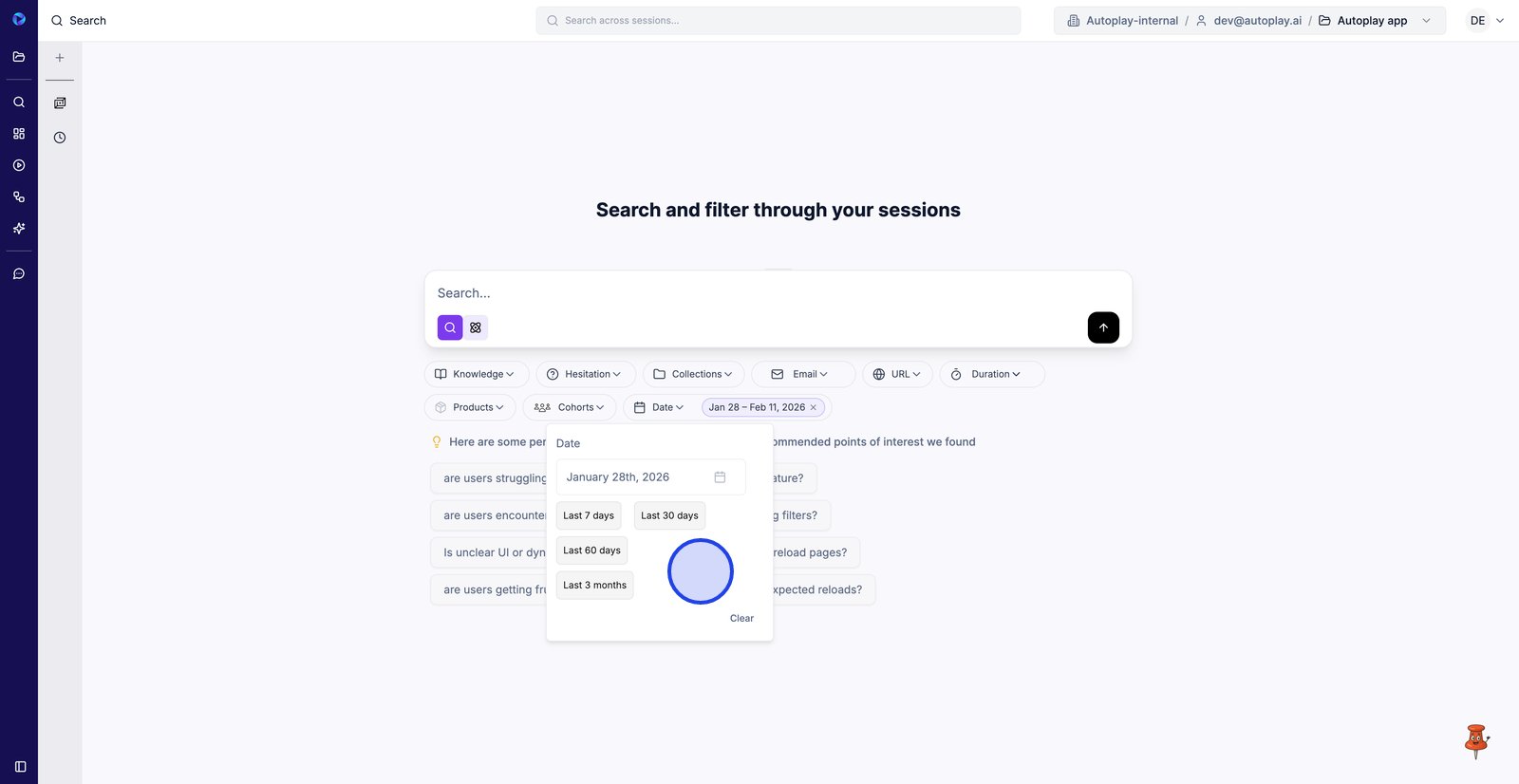
11. Adjust the date range to focus your search on the time window you care about.
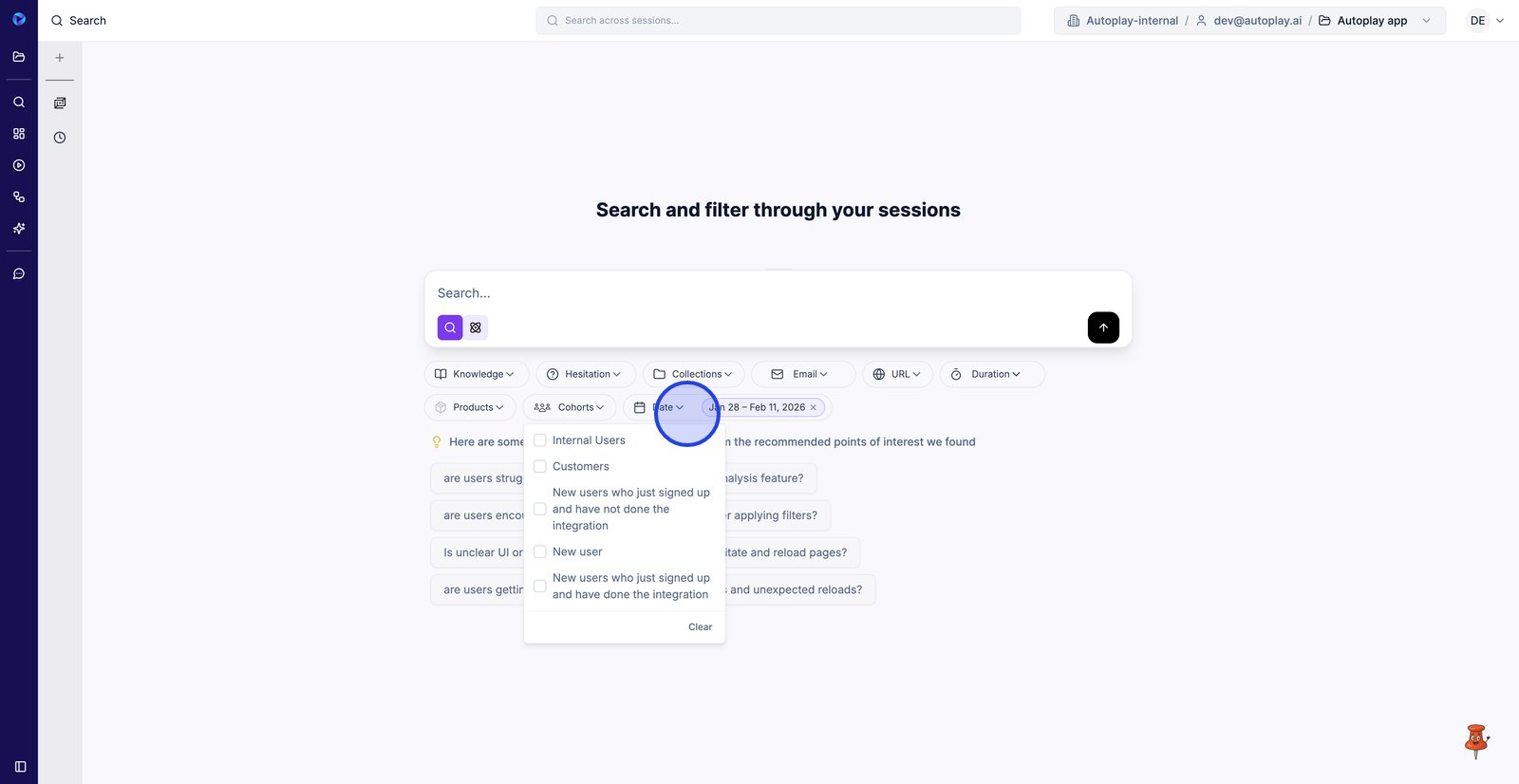
12. Pick a preset or custom date range to compare recent behavior with earlier sessions.
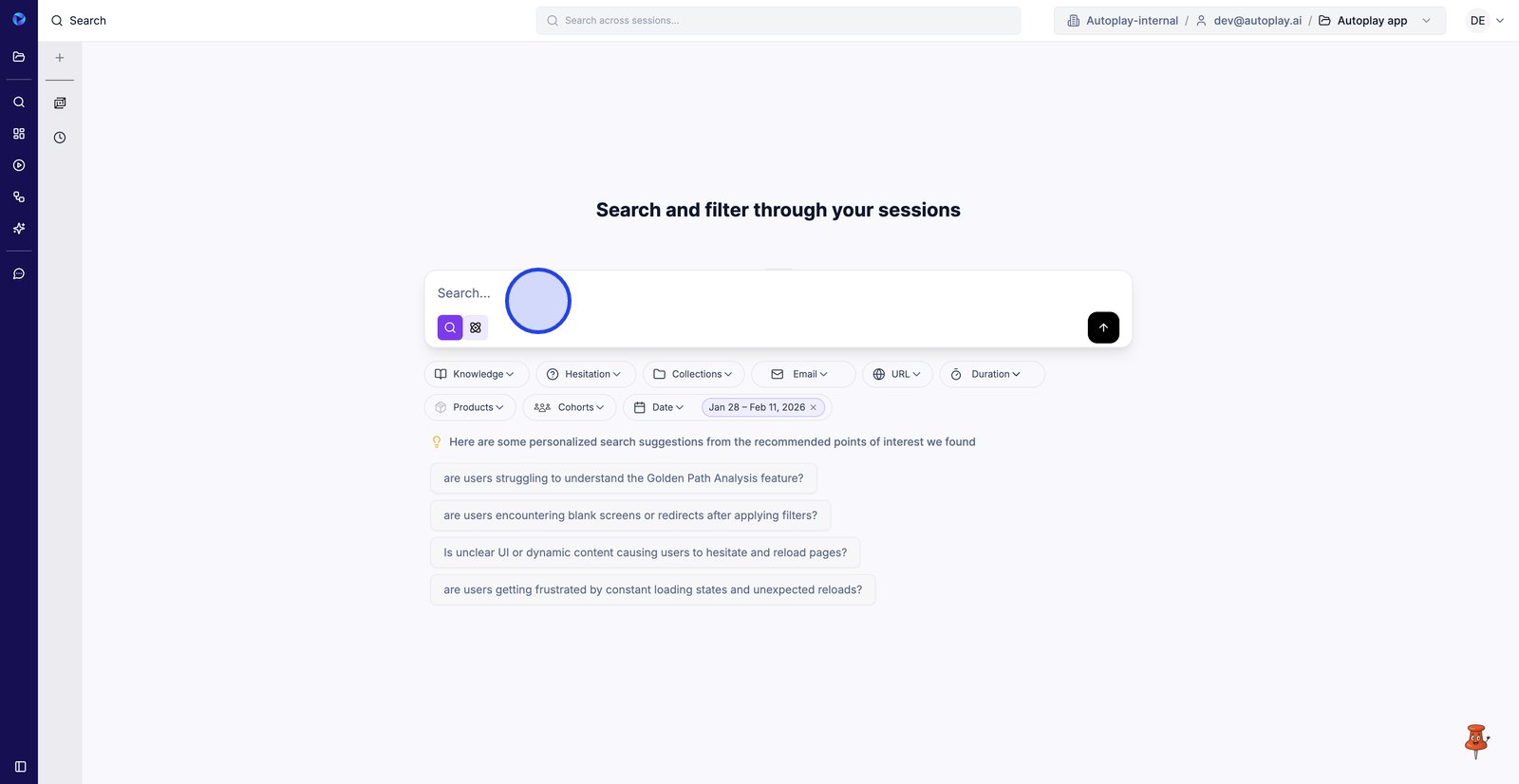
13. Click into the main search bar to type a question or issue you want to investigate.
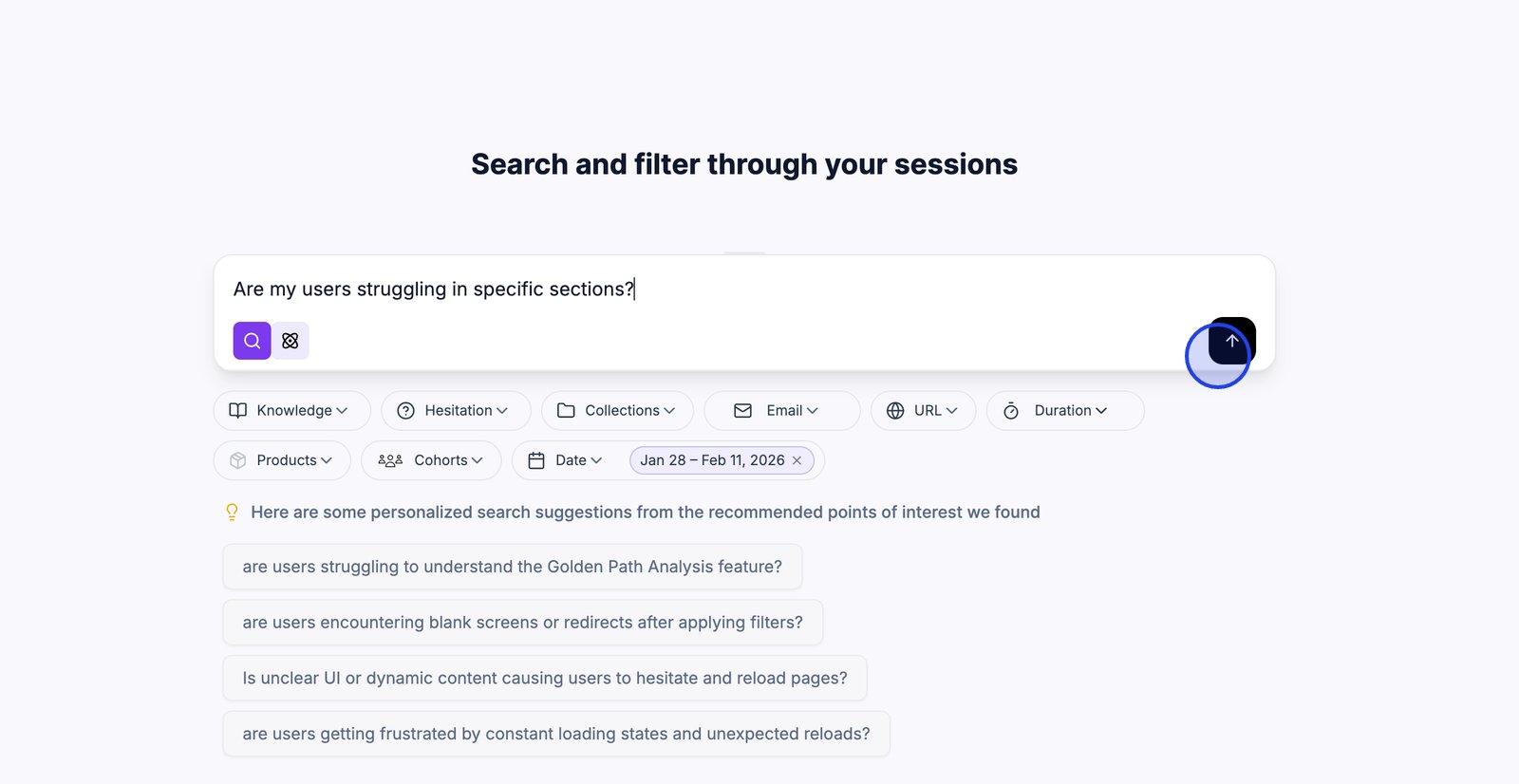
14. Run the query to generate matching sessions and insights from your filters.
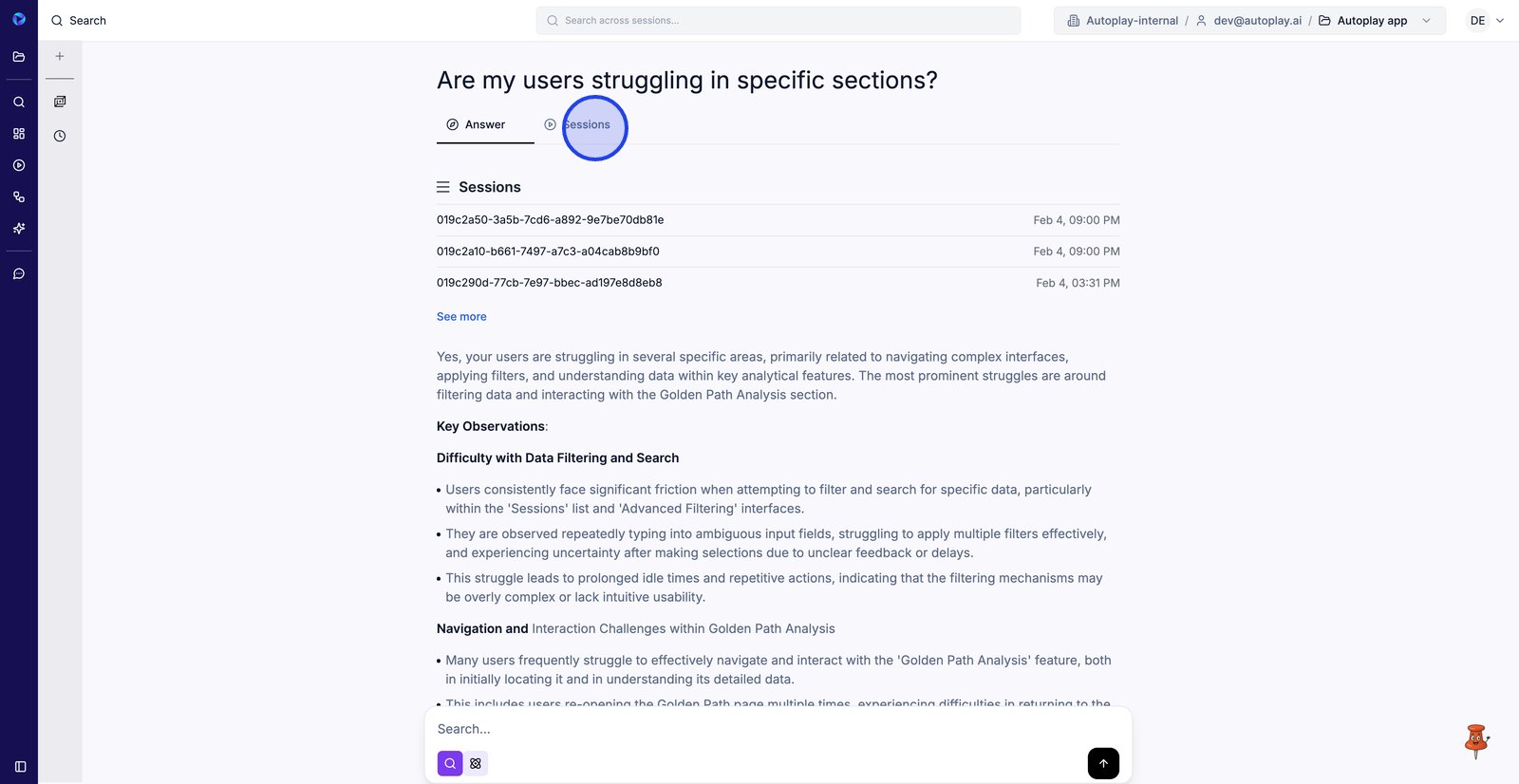
15. Switch to the Sessions tab to review the exact replays behind the answer.
16. Change the sort order to scan sessions in the sequence that’s most useful for your review.
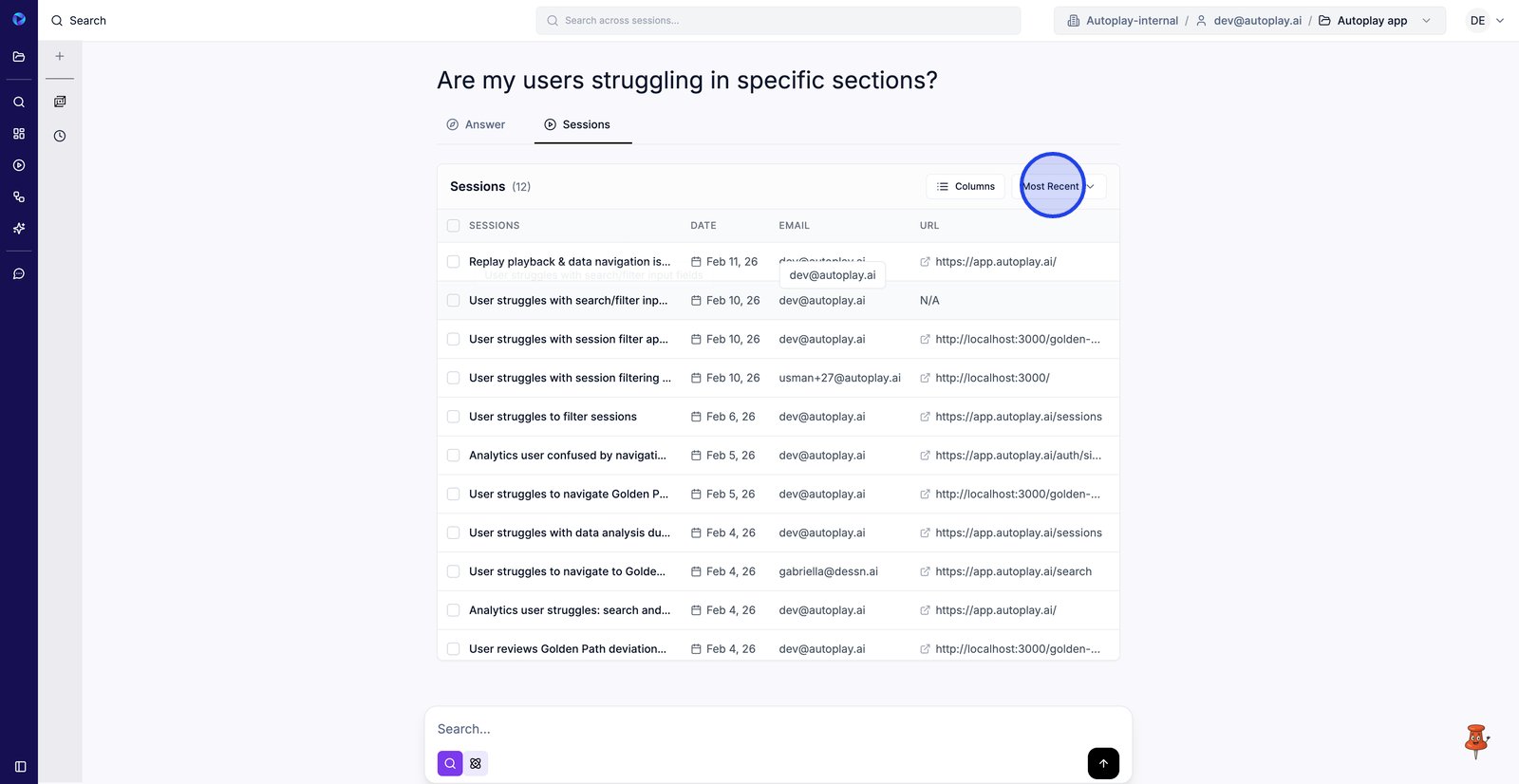
17. Choose Most Recent or Oldest First to prioritize the sessions you want to watch first.
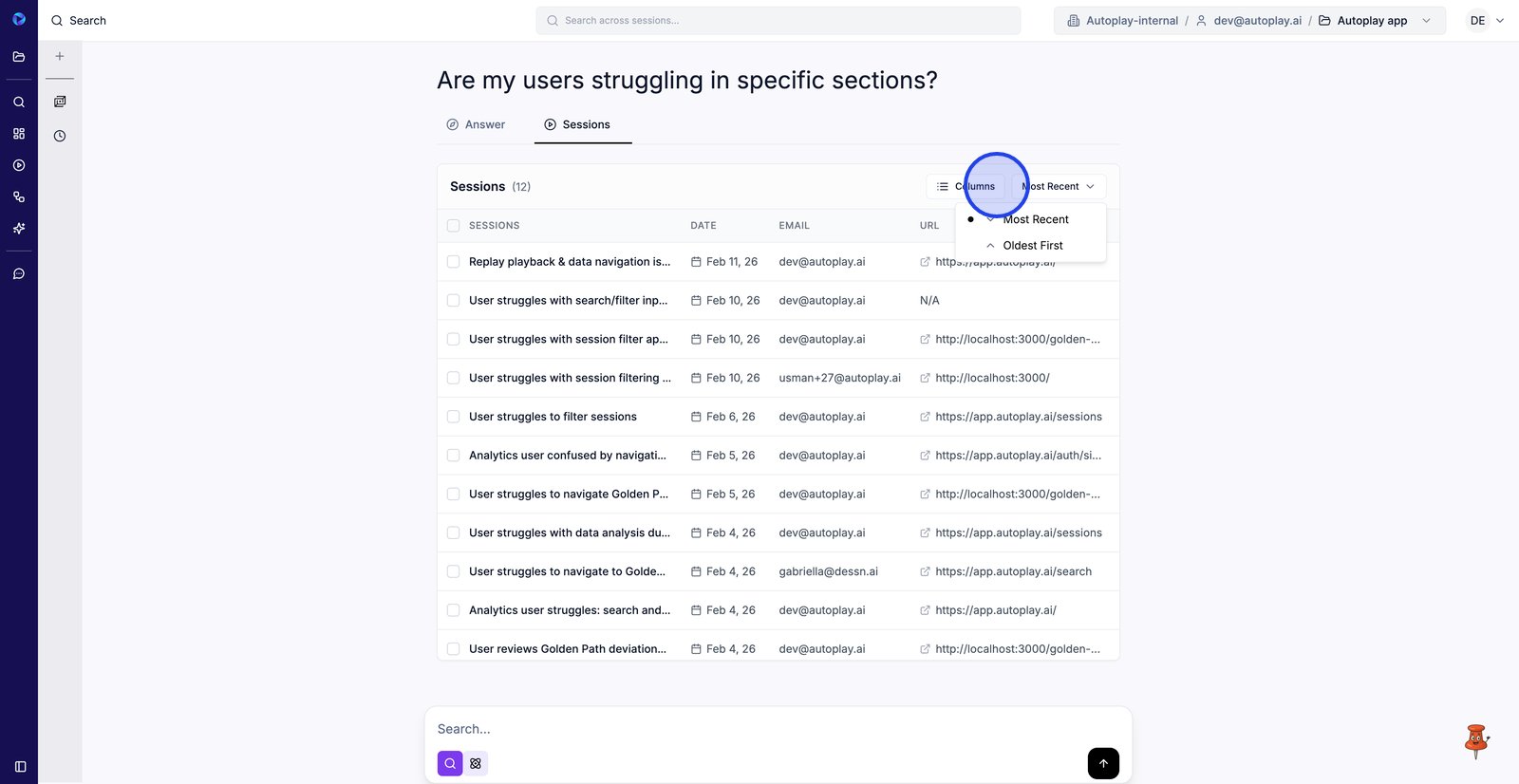
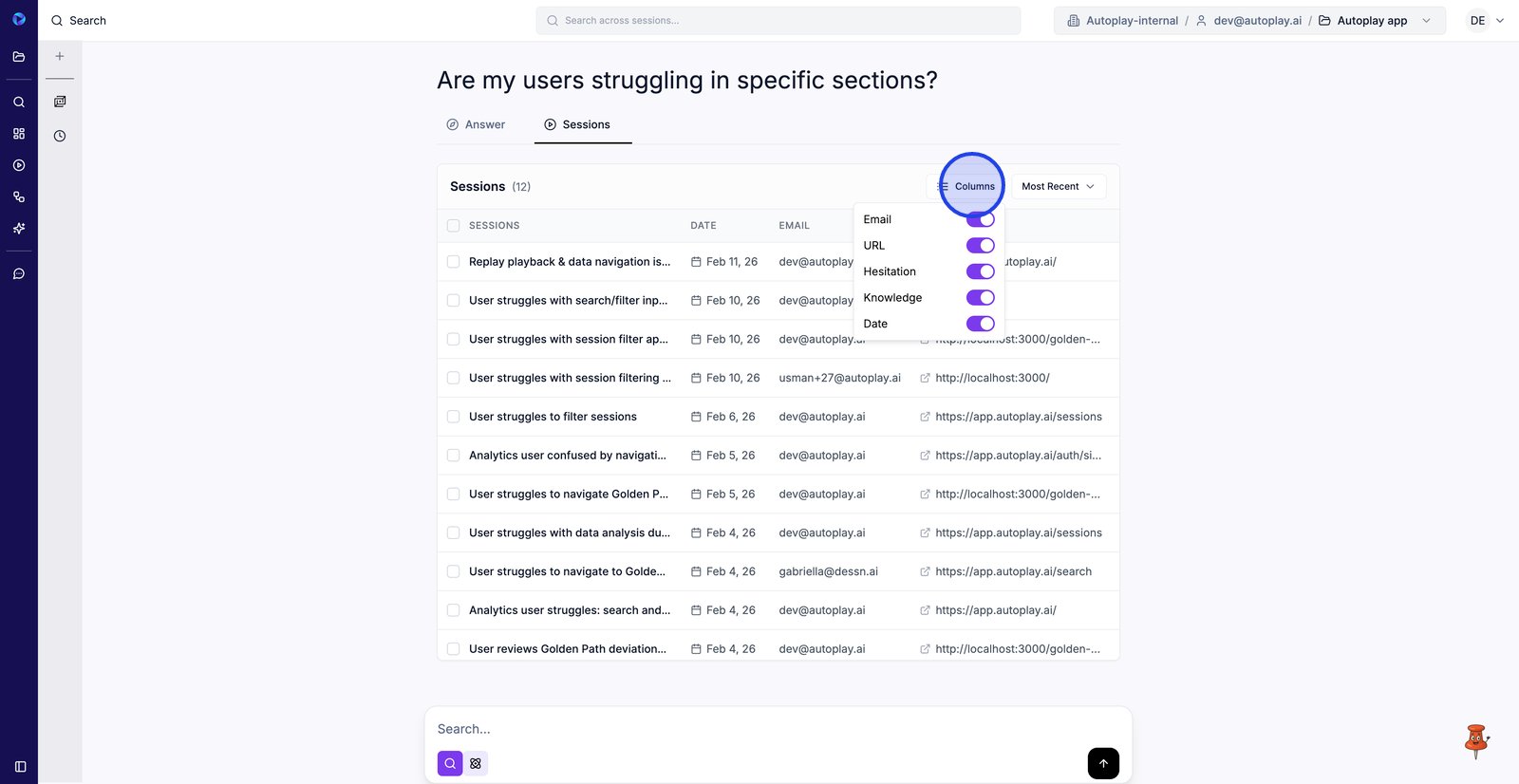
18. Open Columns to show the fields you need for quick triage, like URL, email, and hesitation.
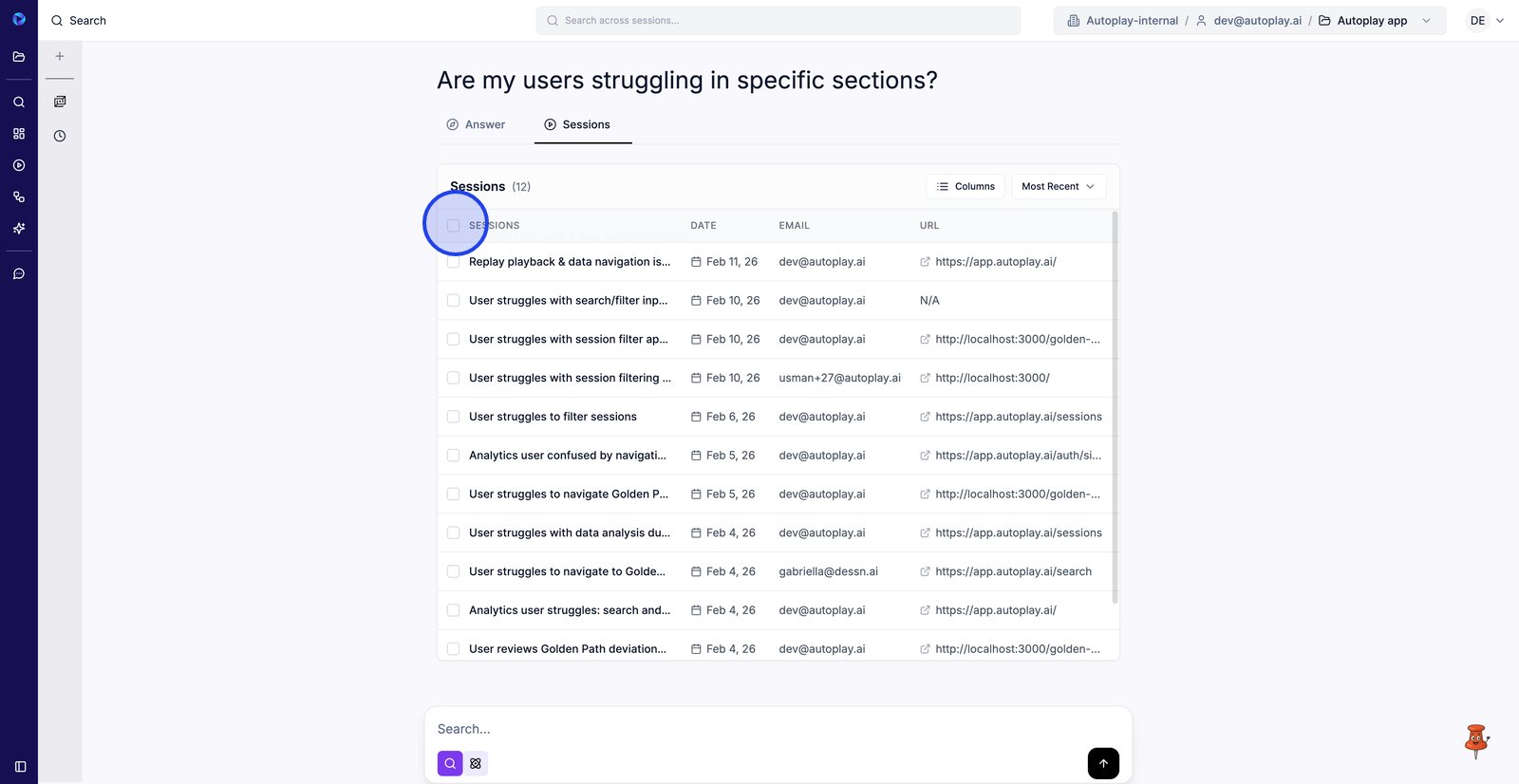
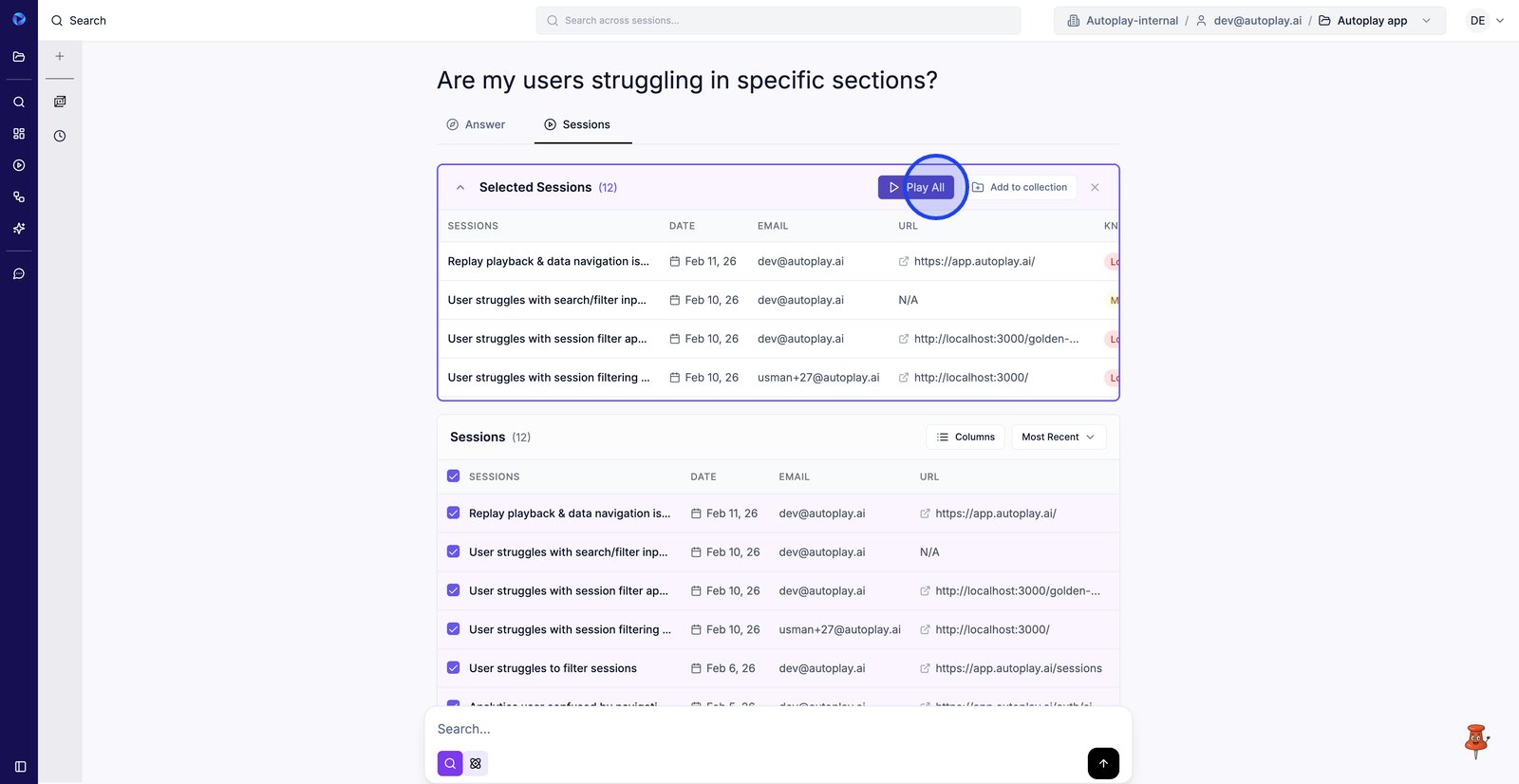
19. Select all sessions to apply a bulk action or review them together.
20. Click Play All to watch the selected session replays back-to-back and spot patterns faster.
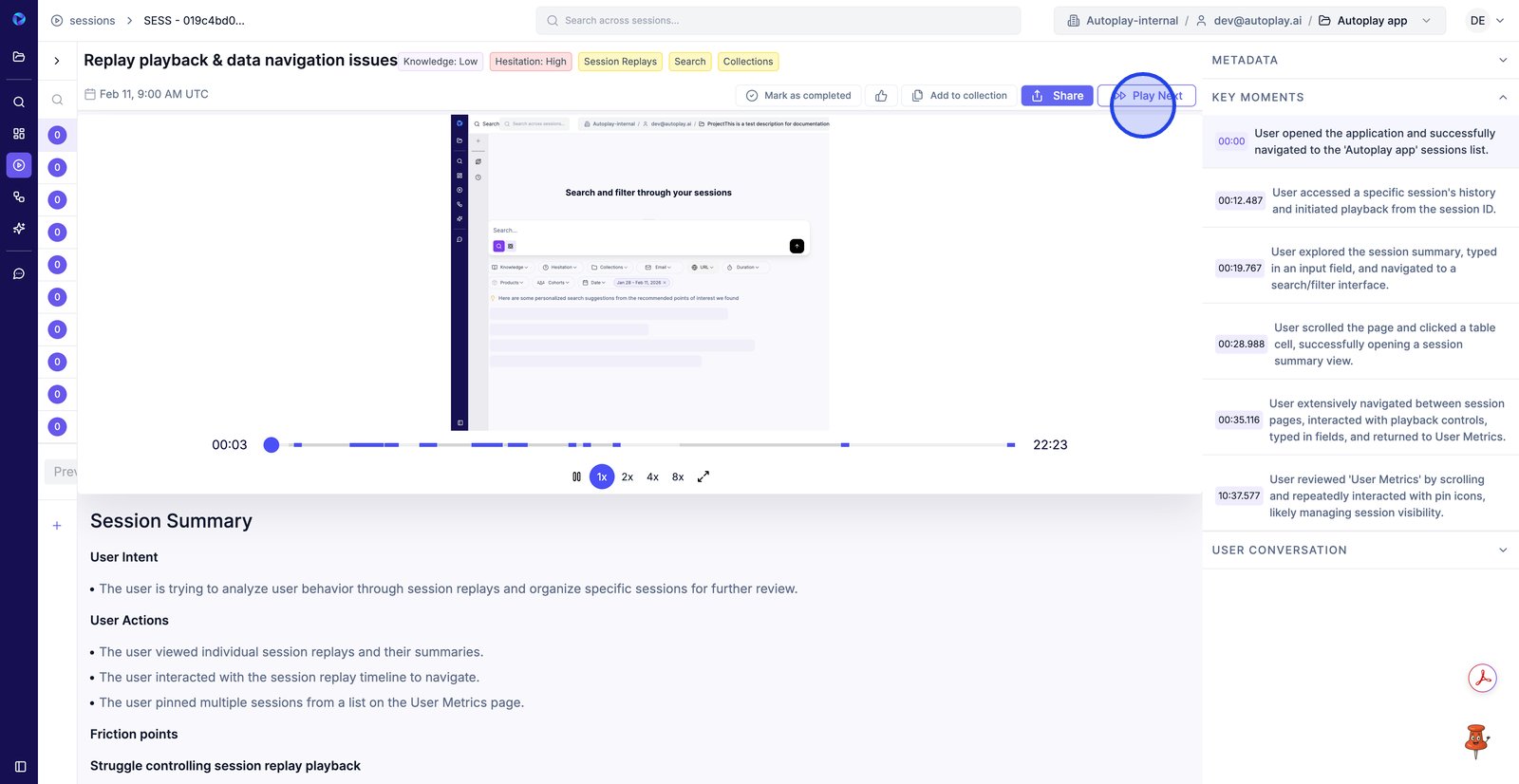
21. Use Play Next to jump to the next replay and continue your investigation without leaving the player.
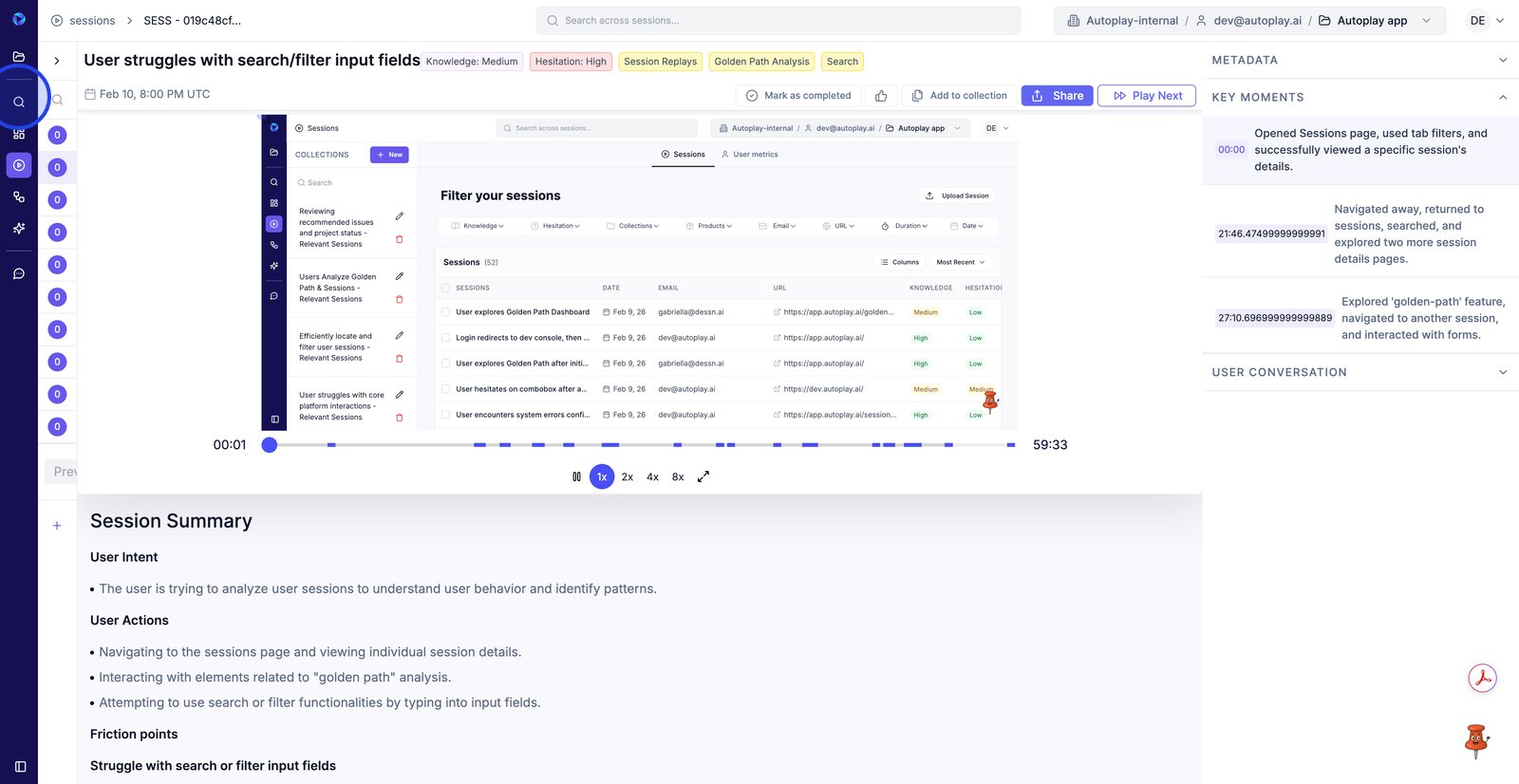
22. Return to Search to refine filters when the replay reveals a new hypothesis to test.
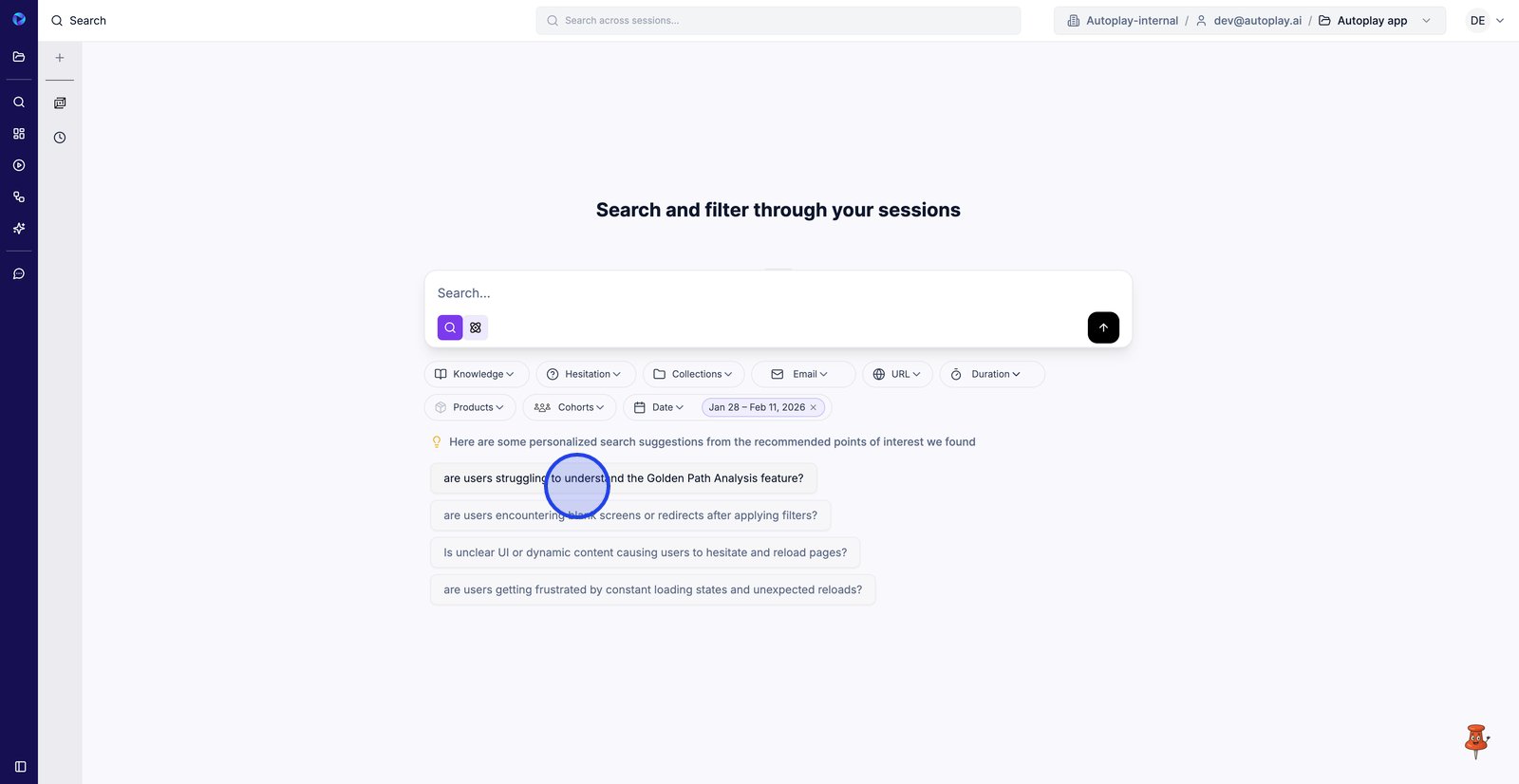
23. Click a suggested query to instantly view aggregated friction patterns across sessions.
24. Add a new Space to keep your analysis questions and session findings organized.
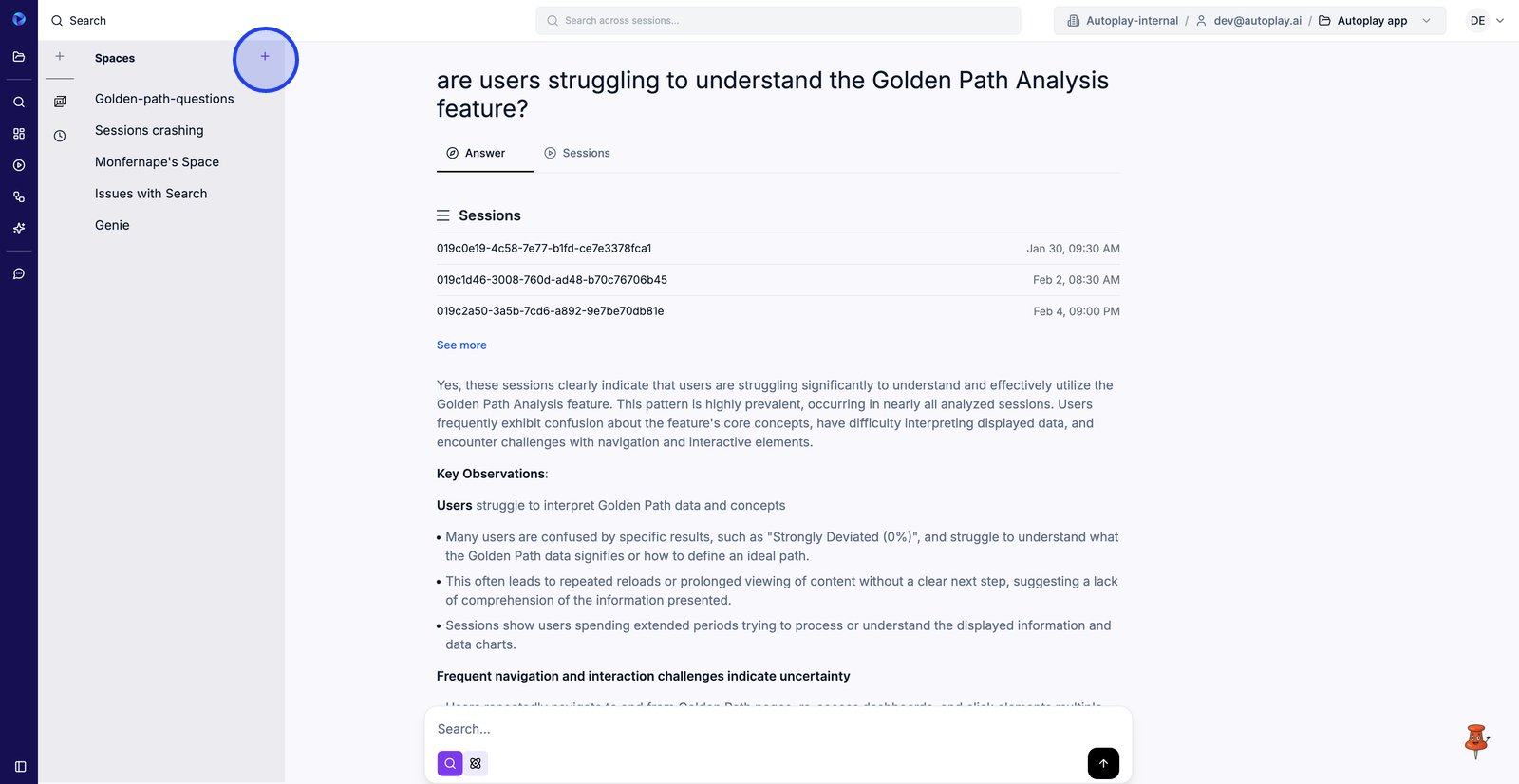
25. Write a short description so teammates know what this Space is meant to track.
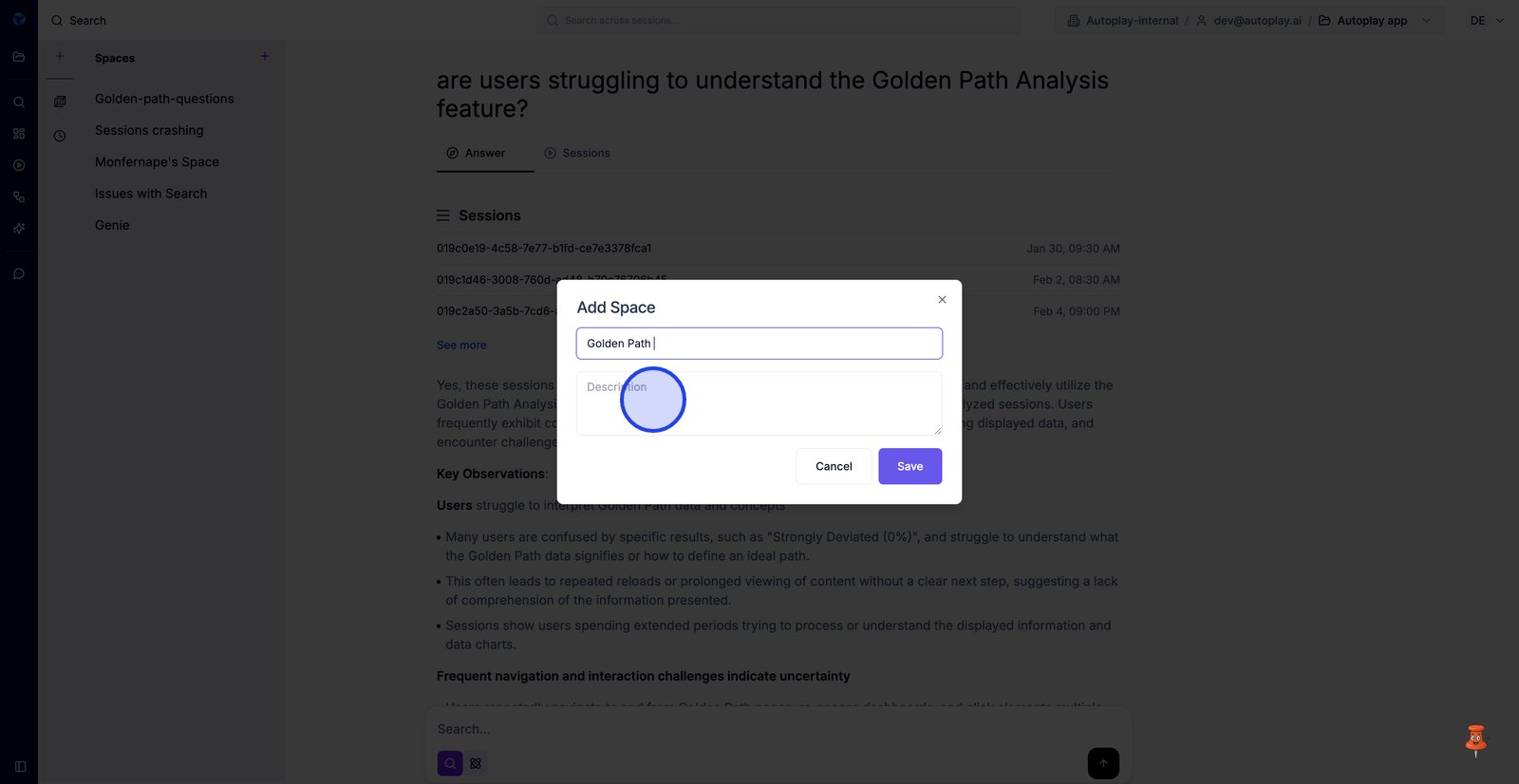
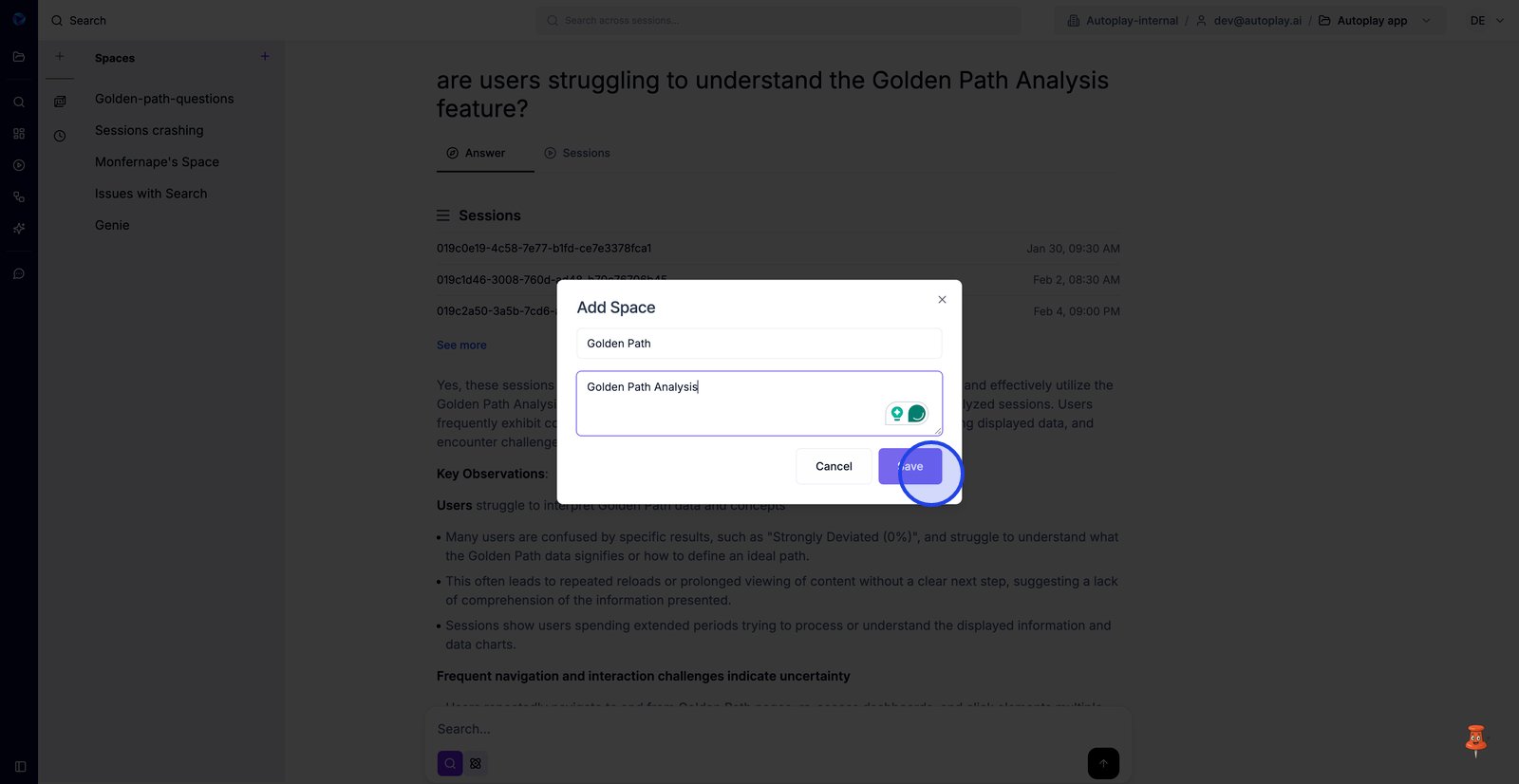
26. Save the Space to create a dedicated home for tailored Analysis work.
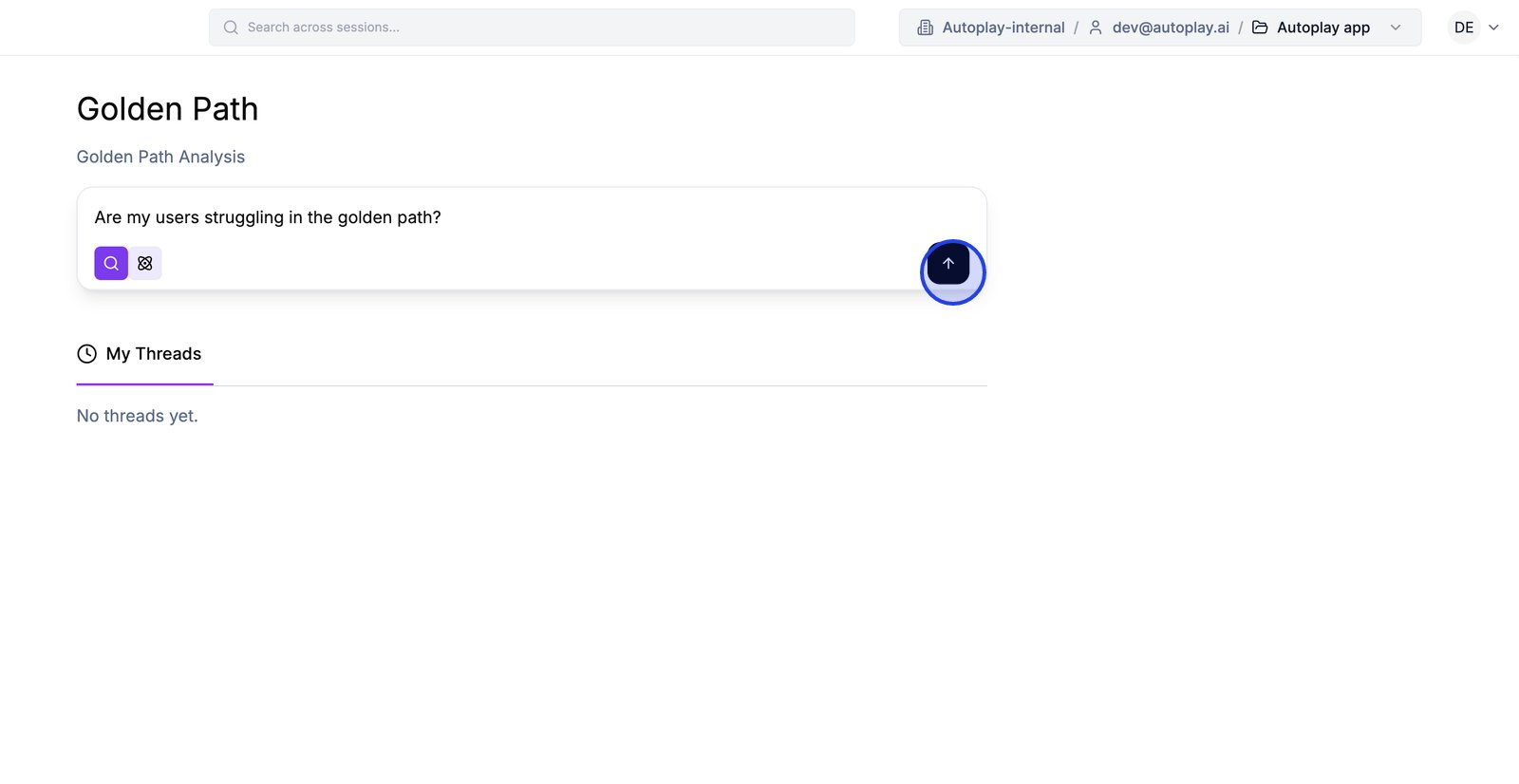
27. Use the “Saved Space” search box to start a new analysis and build a discussion thread.
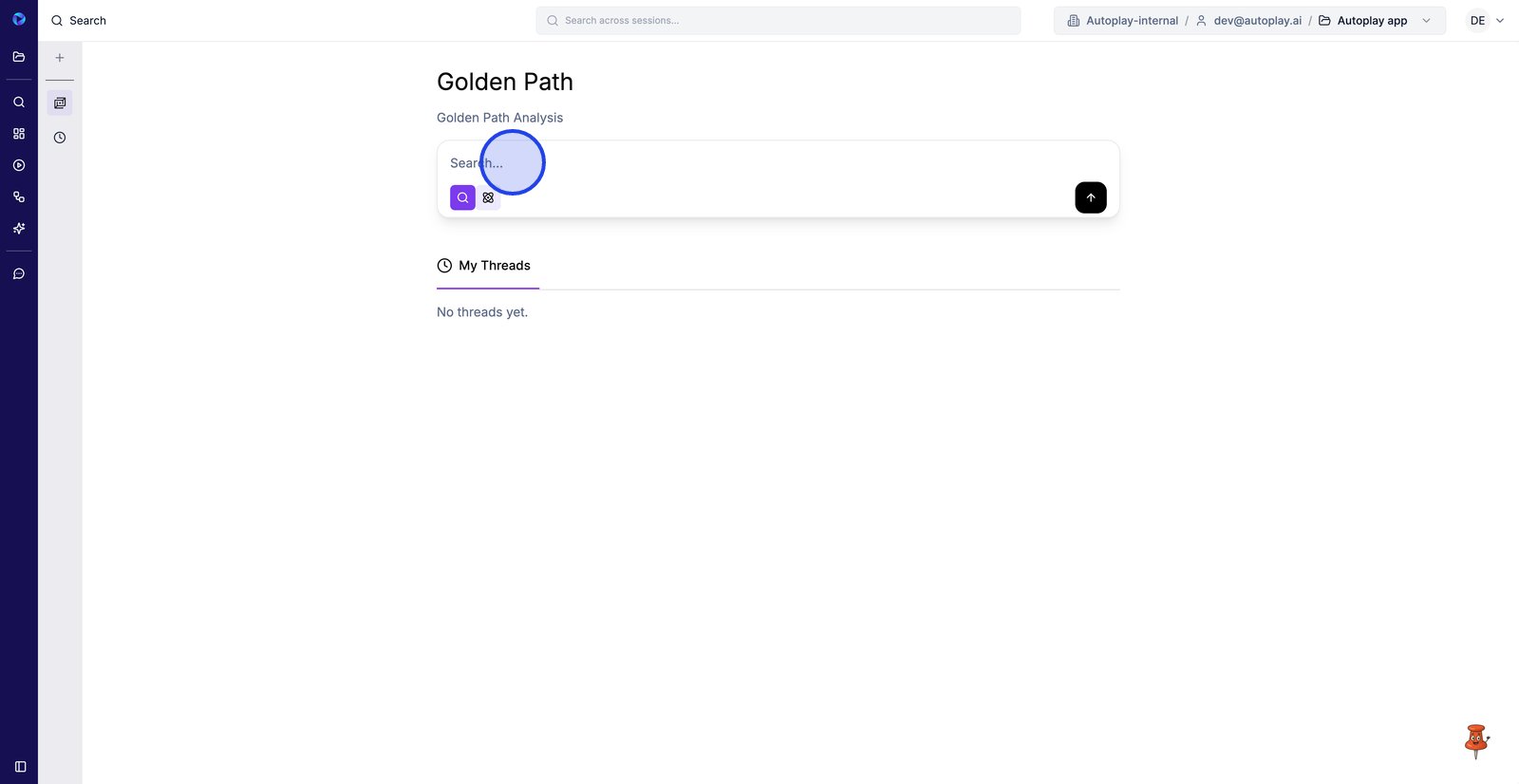
28. Submit your prompt to run the analysis and generate a guided path from real sessions.
29.